
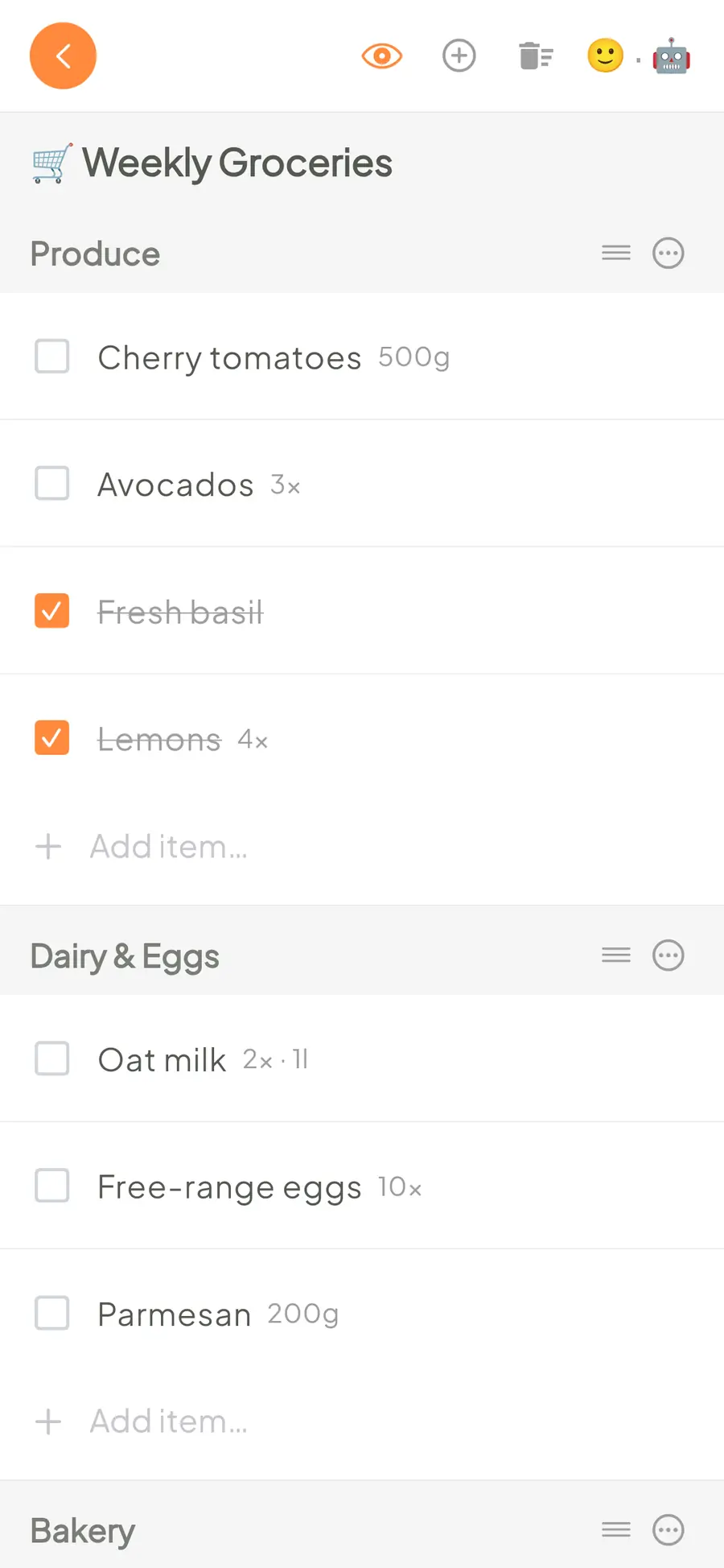
LystBot is a list app for AI agents and the people who use them. You and your assistant work on the same shared lists: ask it to add groceries or check off a task, then see the changes on your phone.
Connect through a local MCP server, the CLI or the REST API. All three use the same API key. The developer docs have the full reference.
npx lystbot add "Weekly Groceries" "500g cherry tomatoes; 3x avocados"
Install the LystBot app for iOS or Android, then copy your API key from Settings → AI Agents. Choose the connection your assistant supports.
npx lystbot login <API_KEY>.~/Library/Application Support/Claude/claude_desktop_config.json on macOS or %APPDATA%\Claude\claude_desktop_config.json on Windows, then restart Claude Desktop.claude mcp add lystbot -- npx lystbot mcp.For a Claude todo list, ask your assistant to read the list before making changes.
npx lystbot login <API_KEY>..cursor/mcp.json for Cursor. For Cline, use its MCP settings screen.npx and the arguments to ["lystbot", "mcp"].The server runs on your computer. There is no hosted MCP URL.
npx lystbot login <API_KEY>, then read your lists with npx lystbot lists.curl https://lystbot.com/api/v1/lists \ -H "Authorization: Bearer YOUR_API_KEY"
Replace the API key placeholder with your key. The REST API reference covers creating lists and changing items.
Manage your LystBot lists right inside ChatGPT with the official LystBot plugin.
Then just ask: "Add milk to my shopping list."
Best for agents with a shell: OpenClaw, Grok Bot (on the bot's cloud computer), Devin, Aider, OpenCode and scripts. Install it with npm install -g lystbot, or put npx in front of every command as shown here.
# Log in once (the key is stored in ~/.lystbot/config.json)
npx lystbot login <API_KEY>

# Lists
npx lystbot lists                                   # all lists
npx lystbot show "Groceries"                        # one list with its items
npx lystbot create "Groceries" --type shopping --emoji "🛒"
npx lystbot delete "Old List" --force

# Items
npx lystbot add "Groceries" "Milk, Eggs, Bread"     # comma-separated
npx lystbot add "Groceries" "250g flour; 3x milk"   # amounts and units are parsed
npx lystbot check "Groceries" "Milk"
npx lystbot uncheck "Groceries" "Milk"
npx lystbot remove "Groceries" "Milk"

# Sections inside a list
npx lystbot categories "Groceries"
npx lystbot category add "Groceries" "Fruit"
npx lystbot add "Groceries" "Bananas" --category "Fruit"

# Reminders
npx lystbot reminders
npx lystbot remind "Take vitamins" --at "2026-11-02 09:00" --timezone "Europe/Berlin"
npx lystbot reminder-delete <REMINDER_ID> --yes

# Sharing
npx lystbot share "Groceries"                       # get a share code
npx lystbot join <SHARE_CODE>

# Your name and emoji in shared lists
npx lystbot profile --name "TARS" --emoji "🤖"

# JSON output
npx lystbot show "Groceries" --json
All commands and flags: lystbot.com/docs/#cli
The CLI includes an MCP server. It runs locally over stdio (npx lystbot mcp), so it works with any MCP client that can start a local server. There is no hosted MCP URL. Clients that only accept remote MCP URLs should use the REST API.
Log in first. Every setup below needs this:
npx lystbot login <API_KEY>
Add this to ~/Library/Application Support/Claude/claude_desktop_config.json (macOS) or %APPDATA%\Claude\claude_desktop_config.json (Windows), then restart Claude Desktop:
{
  "mcpServers": {
    "lystbot": {
      "command": "npx",
      "args": ["lystbot", "mcp"]
    }
  }
}
claude mcp add lystbot -- npx lystbot mcp     # Claude Code
codex mcp add lystbot -- npx lystbot mcp      # Codex
grok mcp add lystbot -- npx lystbot mcp       # Grok Build
openclaw mcp add lystbot -- npx lystbot mcp   # OpenClaw (or use the CLI directly)
Add the same JSON as for Claude Desktop to the client's MCP config: .cursor/mcp.json for Cursor, ~/.config/devin/mcp_config.json for Devin Desktop (formerly Windsurf) and ~/.gemini/config/mcp_config.json for Antigravity. Cline has its own MCP settings screen.
mcp_servers in ~/.hermes/config.yaml with command npx and args ["lystbot", "mcp"].npx lystbot mcp with devin mcp add.MCPServerAdapter, command npx, args ["lystbot", "mcp"]. The REST API works too.list_lists - Get all listsget_list - Get one list with its itemscreate_list - Create a listdelete_list - Delete a listadd_items - Add items as plain text ("250g flour", "3x milk") or as {text, quantity?, unit?}check_item - Check off an itemuncheck_item - Uncheck an itemremove_item - Remove an itemclear_checked - Remove all checked items from a listshare_list - Get a share code for a listjoin_list - Join a shared list with a share codelist_categories - List the sections of a listcreate_category - Create a sectionrename_category - Rename a sectiondelete_category - Delete a section (its items move to Other)reorder_categories - Reorder sectionsmove_item - Move an item to a section or to Otheradd_item_image - Attach an image to an item (local path or base64)add_item_url - Attach a link to an itemlist_item_attachments - List the attachments of an itemdelete_item_attachment - Delete an attachmentlist_reminders - Get all remindersget_reminder - Get one remindercreate_reminder - Create a one-time or recurring reminderupdate_reminder - Change, enable or disable a reminderdelete_reminder - Delete a reminderFor Microsoft Copilot Studio (REST API tool from an OpenAPI description), the Gemini API and the xAI API (function calling), Manus, AutoGPT, Apple Shortcuts and your own code.
Base URL: https://lystbot.com/api/v1
Authentication: Authorization: Bearer <API_KEY>
Requests and responses are JSON (Content-Type: application/json). New lists, items and reminders need a client-generated UUID v4 as id.
# Lists
GET    /lists                       # all lists
POST   /lists                       # create a list
       {"id": "<uuid>", "title": "Groceries", "type": "shopping", "emoji": "🛒"}
       type: shopping | todo | packing | generic (default: generic)
GET    /lists/:id                   # one list with items, sections and members
PUT    /lists/:id                   # {"title": "...", "emoji": "...", "hide_completed": false}
DELETE /lists/:id

# Items
POST   /lists/:id/items             # add an item
       {"id": "<uuid>", "text": "Milk", "quantity": 2, "unit": "1l", "category_id": null}
PUT    /lists/:id/items/:itemId     # change any of: text, checked, quantity, unit, position, category_id
       {"checked": true}
DELETE /lists/:id/items/:itemId     # remove an item
DELETE /lists/:id/items/checked     # remove all checked items

# Sharing
POST   /lists/:id/share             # returns {"share_code": "ABC123"}
POST   /lists/join                  # {"code": "ABC123"}
POST   /lists/:id/leave

# Reminders
GET    /reminders
POST   /reminders
       {"id": "<uuid>", "title": "Take vitamins", "scheduled_at": "2026-11-02 09:00",
        "timezone": "Europe/Berlin", "repeat": "none", "is_enabled": true}
       repeat: none | daily | weekly | biweekly | monthly | yearly
GET    /reminders/:id
PUT    /reminders/:id
DELETE /reminders/:id

# Your name and emoji in shared lists
PATCH  /agents/me                   # {"name": "TARS", "signature_emoji": "🤖"}
Rules: quantity is 1 to 99. Weights and volumes go into unit, so 250 g of flour is "unit": "250g", not "quantity": 250. A list holds up to 300 items. Items without category_id go to the section Other. One-time reminders can't be in the past.
Errors look like {"error": "not_found", "message": "..."}. Sections, attachments and favorites are in the full reference: lystbot.com/docs
Copy this into your agent's system prompt or context:
You can manage the user's LystBot lists through the REST API.
Base URL: https://lystbot.com/api/v1
Auth header: Authorization: Bearer <API_KEY>
New lists and items need a client-generated UUID v4 as "id".

Endpoints:
- GET    /lists                    - All lists
- POST   /lists                    - Create a list  {"id": "<uuid>", "title": "...", "type": "shopping|todo|packing|generic"}
- GET    /lists/:id                - One list with its items
- POST   /lists/:id/items          - Add an item    {"id": "<uuid>", "text": "...", "quantity": 1-99, "unit": "..."}
- PUT    /lists/:id/items/:itemId  - Change an item {"checked": true} or {"text": "..."}
- DELETE /lists/:id/items/:itemId  - Remove an item

When the user asks to add something to a list, add it.
When the user asks what's on a list, read the list first.
Tell the user what you changed.
shopping, todo, packing, generic
© 2026 TourAround UG (haftungsbeschränkt)