
Claude MCP Grocery Lists with LystBot
Claude MCP Grocery Lists with LystBot
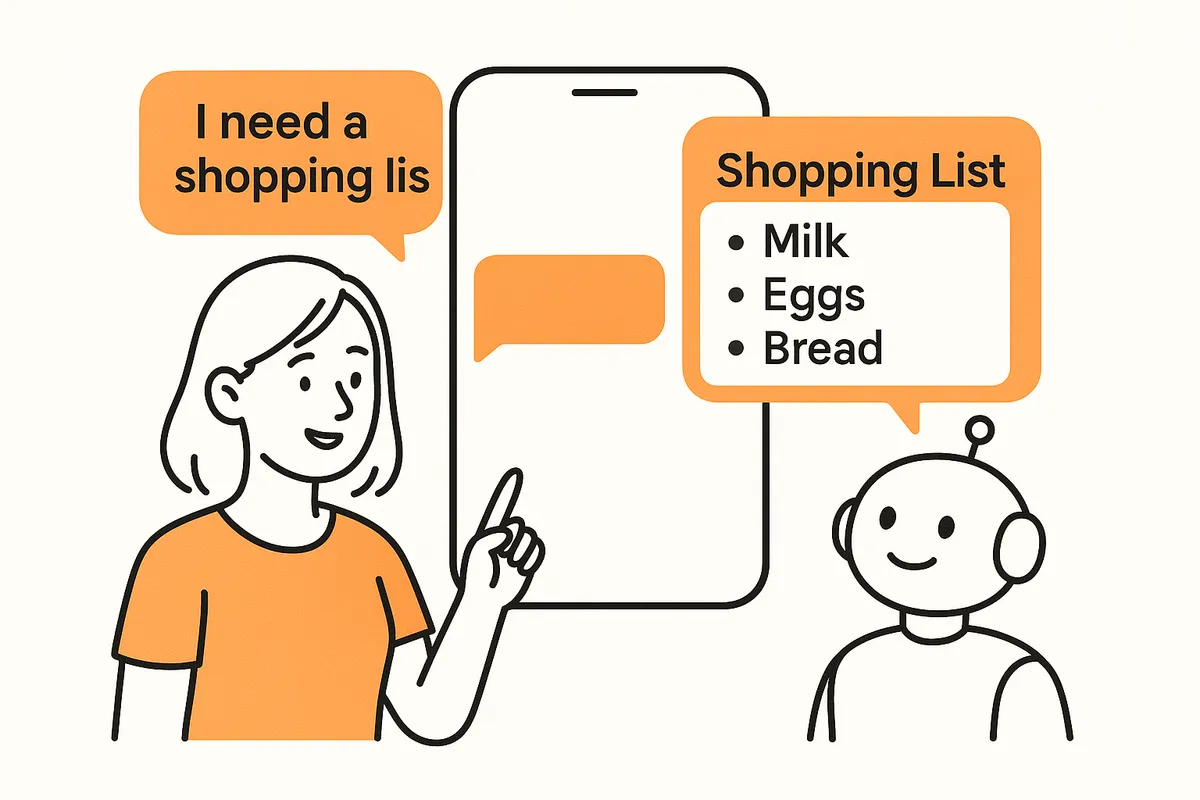
You use Claude every day. You also make grocery lists. With a quick MCP setup in Claude Desktop, Claude can add "milk" to your shared family list while you're chatting about dinner recipes. Not fake-add it. Actually add it, so your partner sees it at the store.
LystBot makes that possible. This guide covers the Claude Desktop setup for grocery lists, what the MCP connection does, and how to use it without turning your household app into a science project.
TL;DR: Install LystBot on your phone, copy your AI Agents code, add one config block to Claude Desktop, and restart. Claude can then read, create, and update your grocery lists for real. Your family keeps using the app like normal. Total setup time: about five minutes.
What Is Claude MCP for Grocery Lists?
MCP stands for Model Context Protocol. Think of it as USB-C for AI apps. It gives Claude a standard way to connect to outside tools without brittle plugins or one-off hacks.
That matters because Claude is good at planning meals, comparing recipes, and turning rough ideas into clean lists. Claude is bad at one thing on its own: saving those results into the app your family uses. An MCP link between Claude and a grocery list app fixes that gap.
LystBot ships with a built-in MCP server. When Claude connects to it, Claude can create a list, add items, check them off, and share the result with the people who shop with you.
Most MCP tools live in developer land. Databases. GitHub. File systems. LystBot goes after a better target, the boring daily stuff people repeat every week.
MCP Server Setup: 5 Steps for Claude Desktop
Here is the full setup. No prior MCP experience needed.
Step 1: Install LystBot
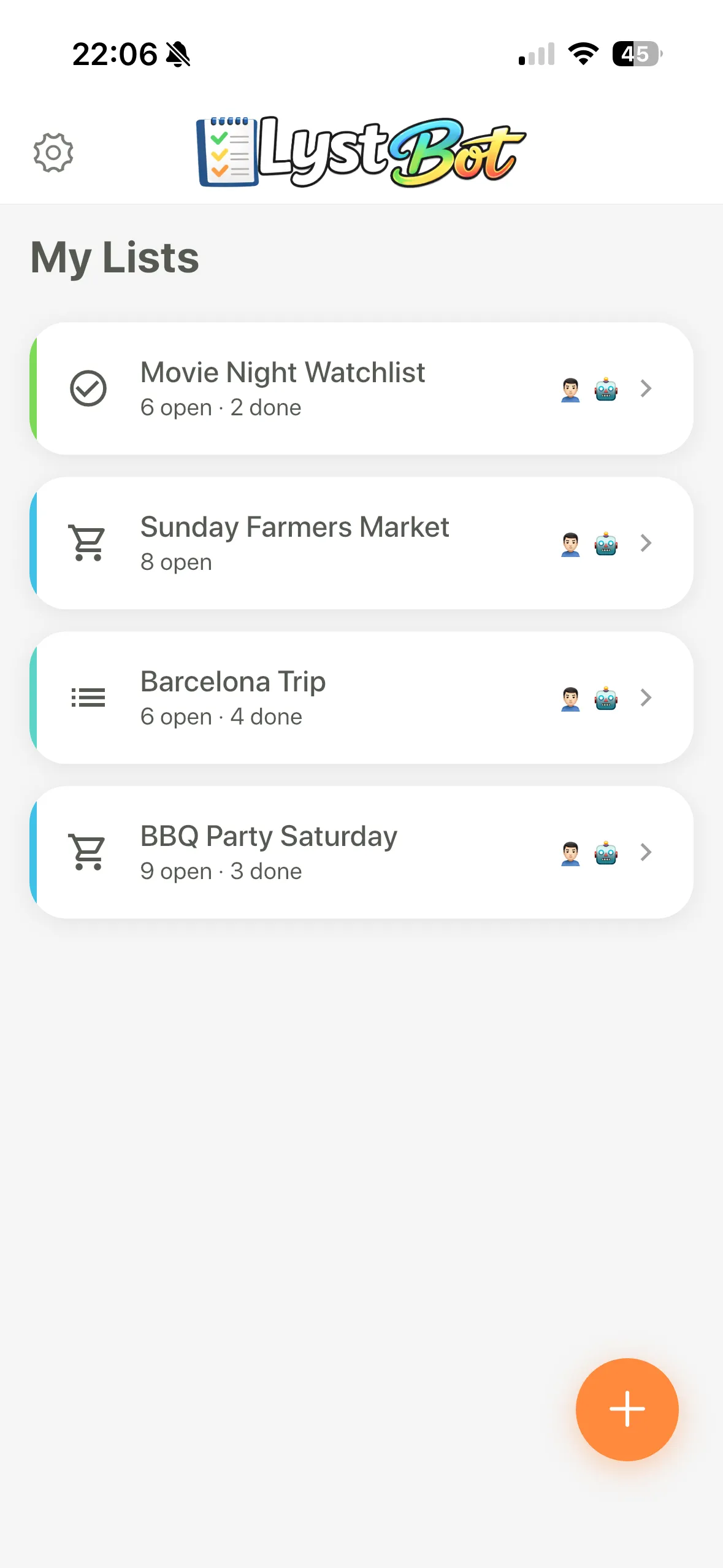
Grab it from the App Store or Google Play. Create a list or two. Add a few items so Claude has something real to work with.
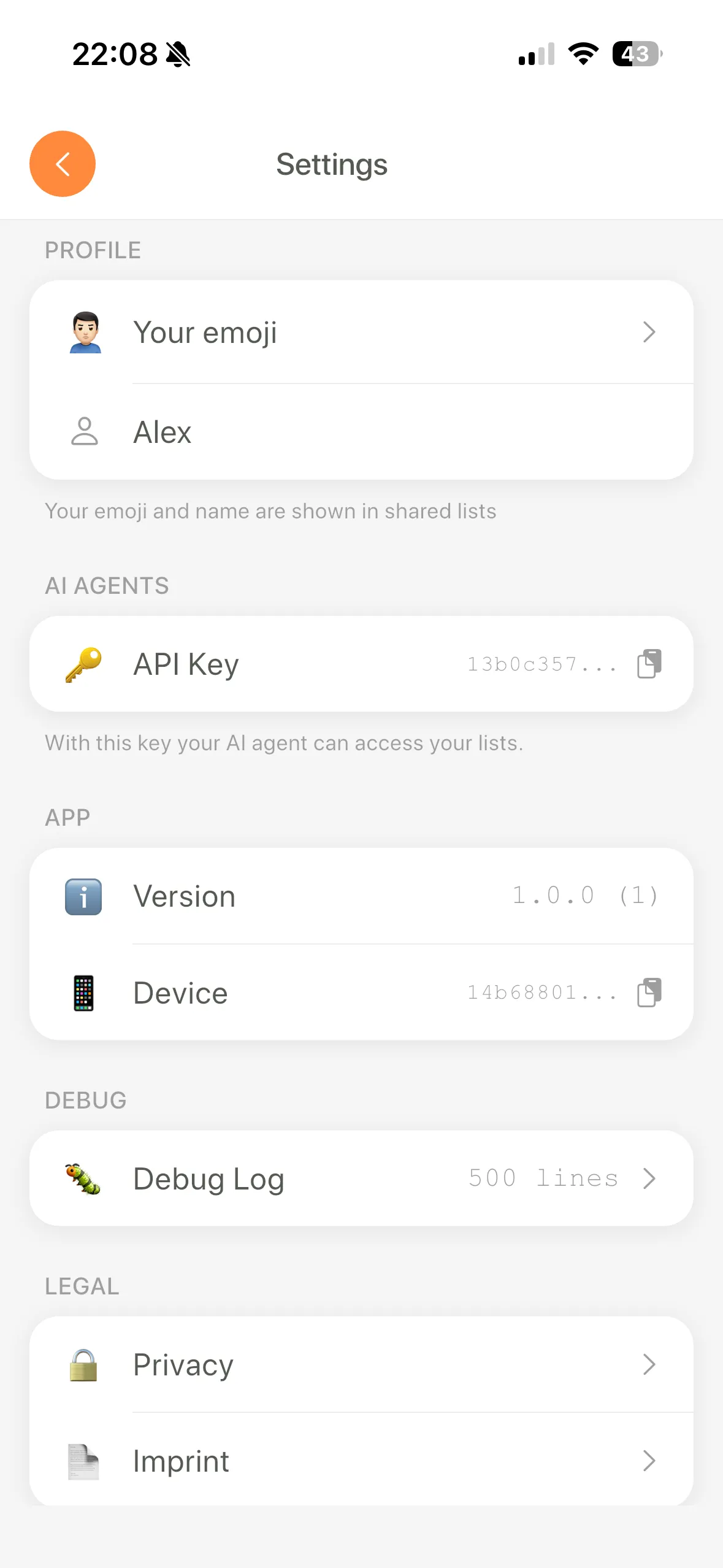
Step 2: Get your AI Agents code
Open Settings, tap AI Agents, and copy the code. This takes a few seconds.
Step 3: Authenticate the CLI
Open a terminal and run:
npx lystbot login YOUR_API_KEYThis stores your code locally so LystBot can authenticate the MCP connection.
Step 4: Add LystBot to Claude Desktop
Open Claude Desktop settings, find the MCP config, and add this block:
{
  "mcpServers": {
    "lystbot": {
      "command": "npx",
      "args": ["lystbot", "mcp"]
    }
  }
}
On macOS, the config file lives at ~/Library/Application Support/Claude/claude_desktop_config.json.
On Windows, check %APPDATA%\Claude\claude_desktop_config.json.
Step 5: Restart Claude Desktop
Close Claude Desktop and reopen it. Look for the hammer icon (🔨) at the bottom of a new conversation. Click it and you should see LystBot's tools listed there: create lists, add items, check items, share lists. That confirms the connection works.
If LystBot doesn't appear: make sure you ran npx lystbot login first, check that the JSON block has no trailing commas, and restart Claude Desktop one more time. MCP servers sometimes need two restarts on first install.
That's it. Your Claude Desktop grocery list connection is live.
Download LystBot free on the App Store and Google Play to try the setup on your own lists.
Claude MCP in Real Life: Grocery List Examples
These are actual prompts you can type into Claude once the connection is live.
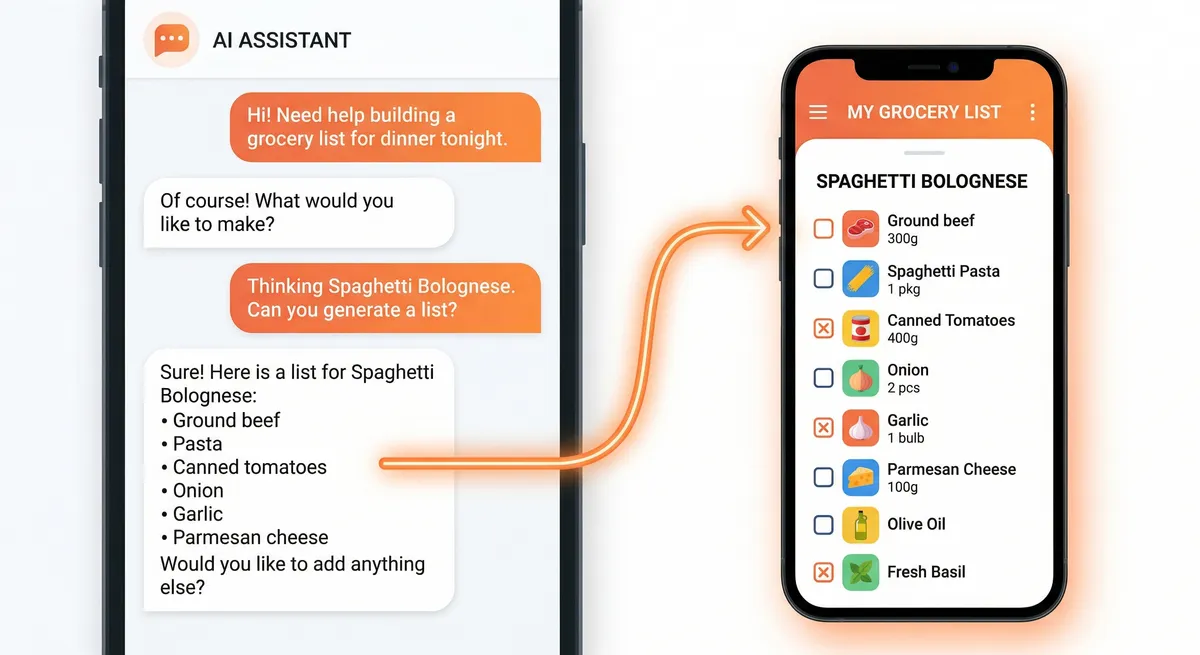
"Add milk, eggs, and bread to my grocery list"
Claude calls LystBot, finds your grocery list, and adds the three items. Your phone buzzes. The list updates right away.
"What's on my shopping list?"
Claude reads the list and shows you the current items, including what someone already checked off.
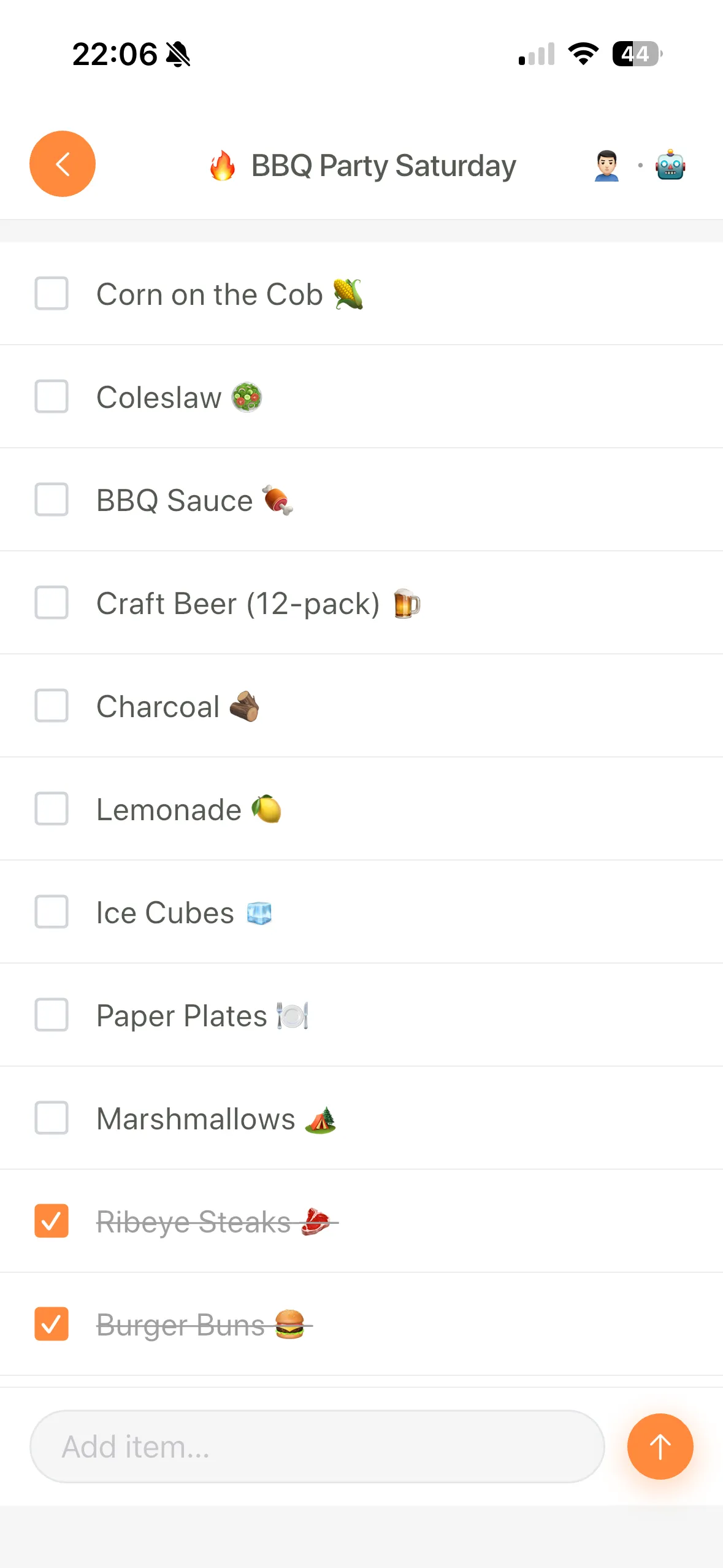
"Check off the milk"
Claude marks it done. If your partner shares the list, they see the checkmark on their phone too.
"Create a new list called Party Supplies with a balloon emoji"
Claude creates it. You can then ask it to add plates, ice, candles, and cups in one shot.
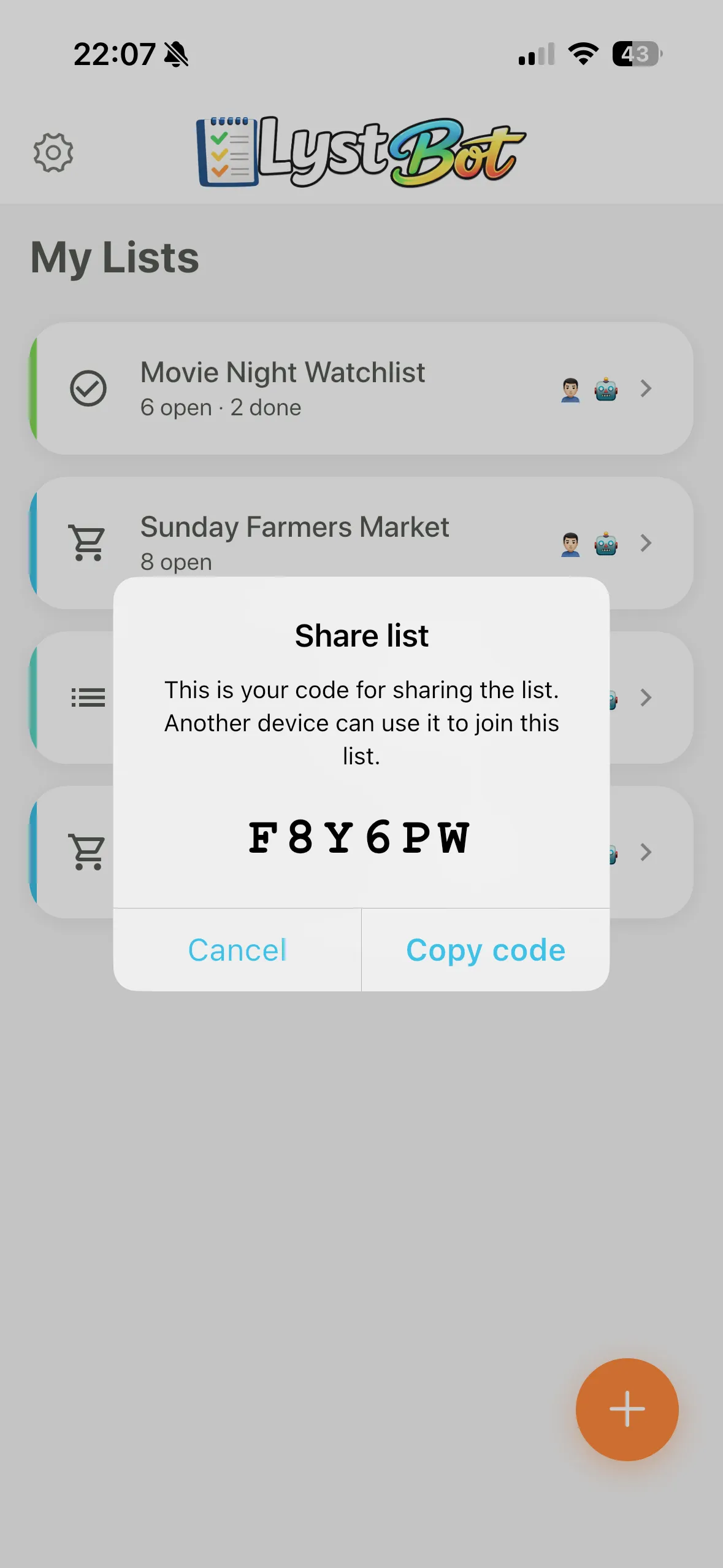
"Share my grocery list"
Claude generates a share code. Send it to anyone and they can join from their phone.
This is where the setup stops feeling technical. Ask Claude to plan five dinners for the week and add every ingredient. Ask it to compare two recipes and choose the cheaper one. Ask it to build a list from a meal plan, then let your family shop from the result.
Beyond Groceries: More MCP List Use Cases
Once the connection works, you can use the same flow for other household lists.
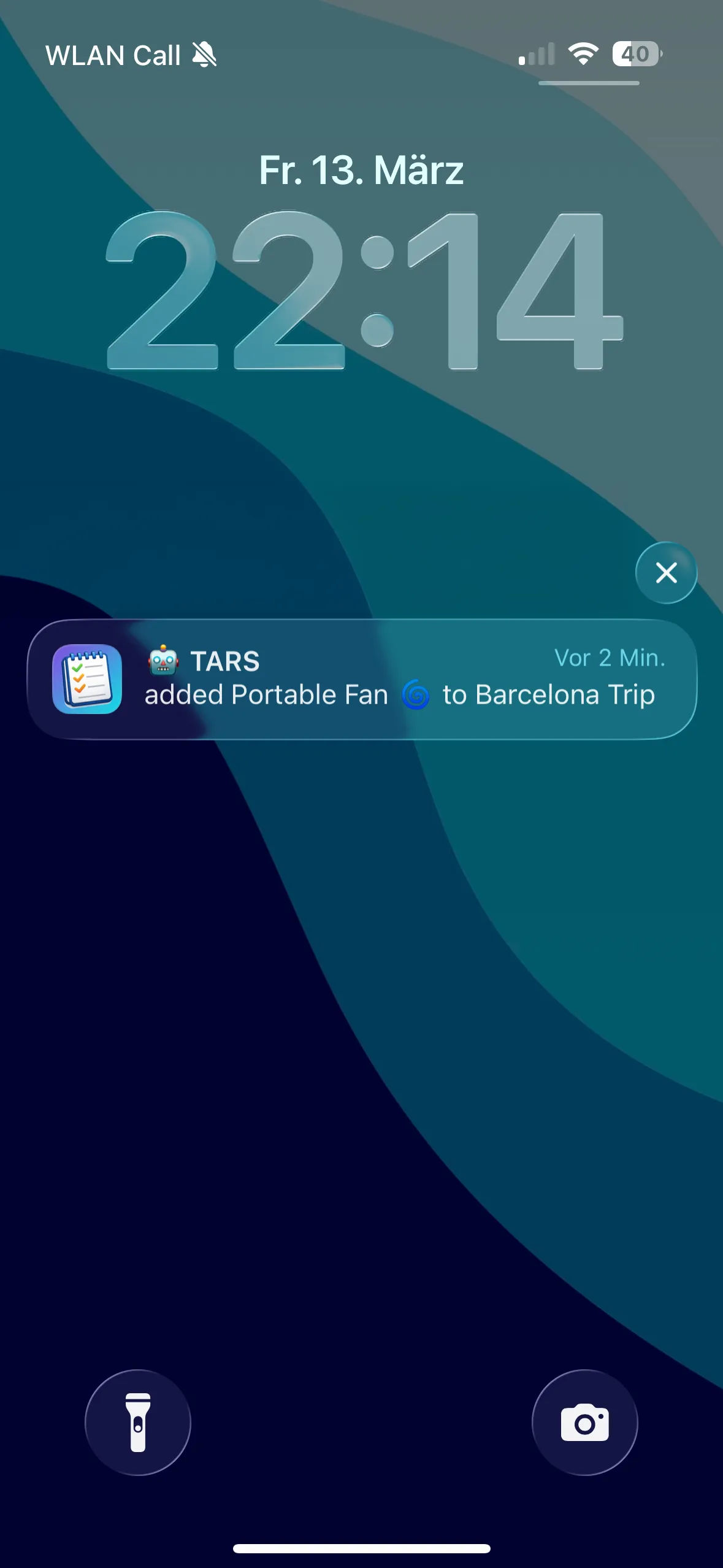
Travel packing lists. "I'm going to Iceland for a week in November. Create a packing list." Claude builds the list, you check things off on your phone.
Gift tracking. "Add Lego Space Shuttle to Theo's birthday list." Keep a running list all year instead of scrambling the night before.
Shared project lists. "Add call electrician and order tile samples to the kitchen project list." You and your partner both see the same progress.
Reading lists, watch lists, wishlists. Any list you'd normally bury in Notes gets a proper home that Claude can manage.
Works with Claude Code, Cursor, and More
Claude Desktop gets the most attention because it's the easiest entry point for households. The same LystBot server also works with other MCP clients, including Cursor, Windsurf, Cline, and Claude Code.
For Claude Code, one command handles the setup:
claude mcp add lystbot -- npx lystbot mcpLystBot is listed on the official MCP Registry, so you can verify the server there. The CLI and server are also open source on GitHub.
The Bottom Line
Setting up Claude MCP with LystBot turns Claude from a good suggester into a real list manager. The Claude Desktop grocery list workflow takes a few minutes to configure, then it runs against the same shared lists your household uses. Your family does not need Claude, a terminal, or any setup at all. They just use LystBot on their phones. We haven't found another MCP server on the registry that does this for personal and grocery lists.