
Let Your AI Agent Manage Your Lists
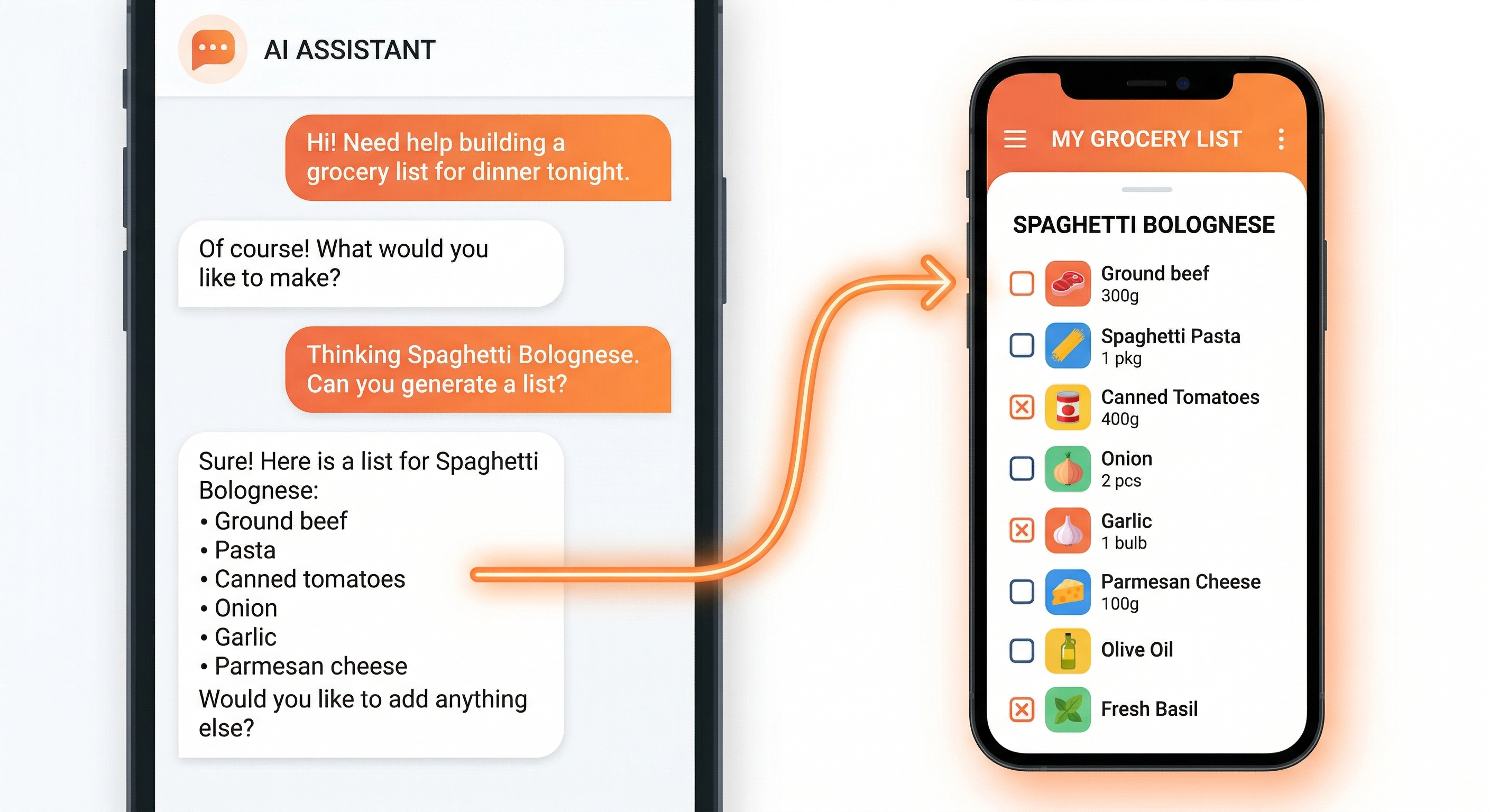
I have 11 lists running right now. AI can write your emails, summarize your meetings, and generate code. But ask it to put milk on your grocery list and you get a blank stare. That's the gap. Your AI agent can manage lists, plan meals, and organize your week, but only if it has a way to actually touch your lists. Most list apps don't offer that.
An APA survey from 2023 found that 36% of Americans feel overwhelmed by the number of decisions they make daily. Lists are supposed to reduce that load. But managing the lists themselves becomes another task: open the app, type the items, organize, check things off, repeat. What if your AI assistant handled the busywork?
LystBot is an ai powered list app built for exactly this. It has a REST API, an MCP server, and a CLI. Your AI agent connects to it, and suddenly "add eggs and butter to my grocery list" actually works. The items show up on your phone. Your partner sees them too.
This post covers two complete workflows (an ai shopping list and an ai todo list), a 5-step setup guide, and a recurring "Sunday Review" automation that ties it all together.
TL;DR: 3 steps, 1 command
- Download LystBot and grab your API key from Settings
- Add the MCP server config to Claude Desktop (full config below)
- Restart Claude and say: "Show me all my lists"
That's it. The rest of this post answers "how to connect AI to my lists" in more detail: two real workflows, the exact code, and the mistakes I made along the way.
How AI agents connect to your lists
AI agents are smart but isolated. Claude, GPT, Gemini: they can reason about what you need, but they can't reach into an app and do something. They need an interface.
There are three ways to connect an AI agent to LystBot:
MCP server. The Model Context Protocol is an open standard from Anthropic that lets AI tools interact with external services. LystBot's MCP server gives Claude Desktop (or Cursor, Windsurf, and others) direct access to your lists. You say "add oat milk to my grocery list" and it happens. No copy-pasting, no switching apps.
REST API. If you're building automations or connecting to tools like n8n, Zapier, or Home Assistant, the REST API accepts standard HTTP requests with JSON. Bearer token auth, no OAuth.
CLI. Run npx lystbot in a terminal. Pipe it into scripts, use it in cron jobs, or let a coding assistant call it directly.
All three hit the same backend. An item added through the API shows up in the app. An item checked off on your phone disappears from the CLI output.
Use case 1: your ai shopping list, managed by Claude
Grocery lists are the most obvious starting point because they happen while you're doing something else. You're cooking and realize you're out of cumin. You're reading a recipe and need eight ingredients. You're chatting with your AI about meal plans for the week.
Here's what this looks like with Claude Desktop and LystBot's MCP server:
You: "I want to make shakshuka this weekend. Add what I need to my grocery list."
Claude: "I've added these items to your Grocery list: canned tomatoes, bell pepper, onion, garlic, eggs, cumin, paprika, and feta cheese."
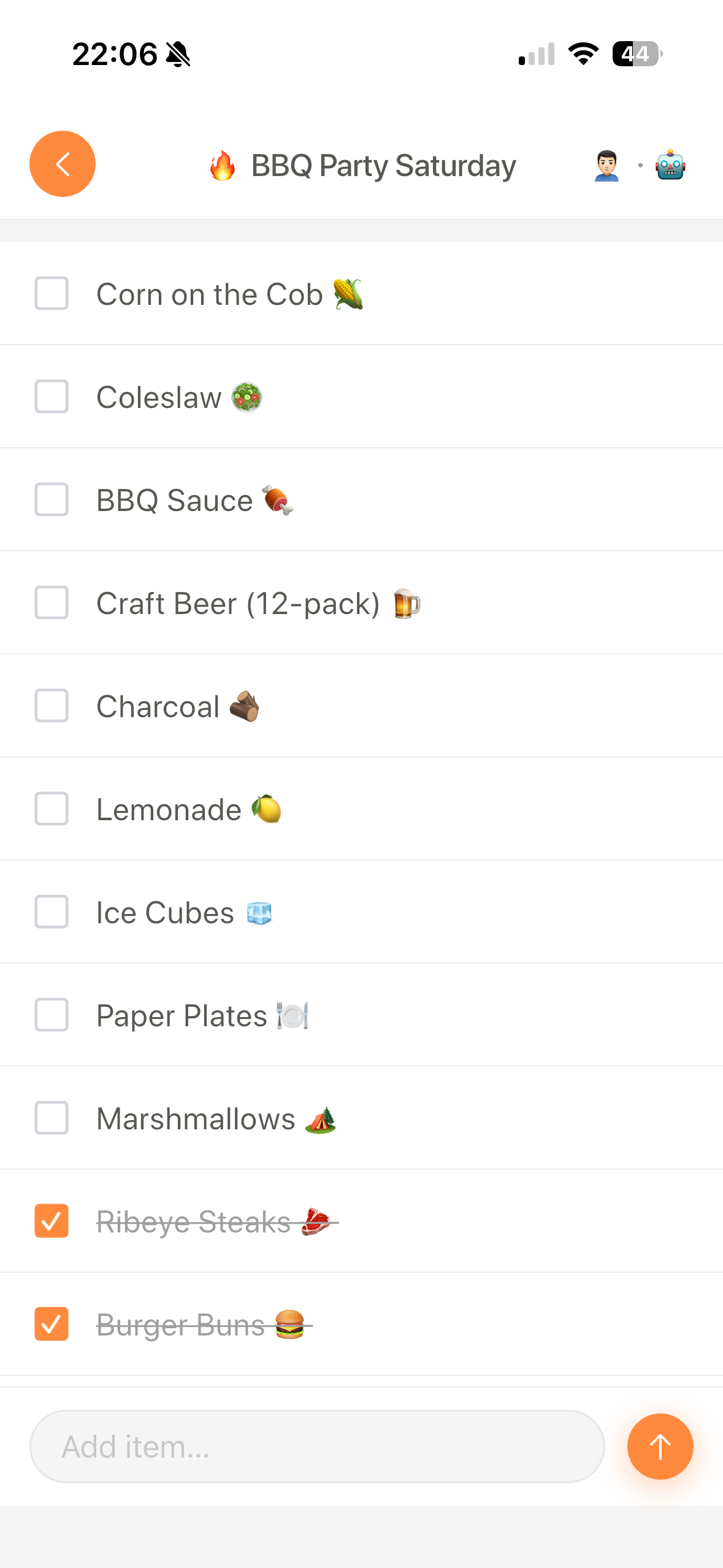
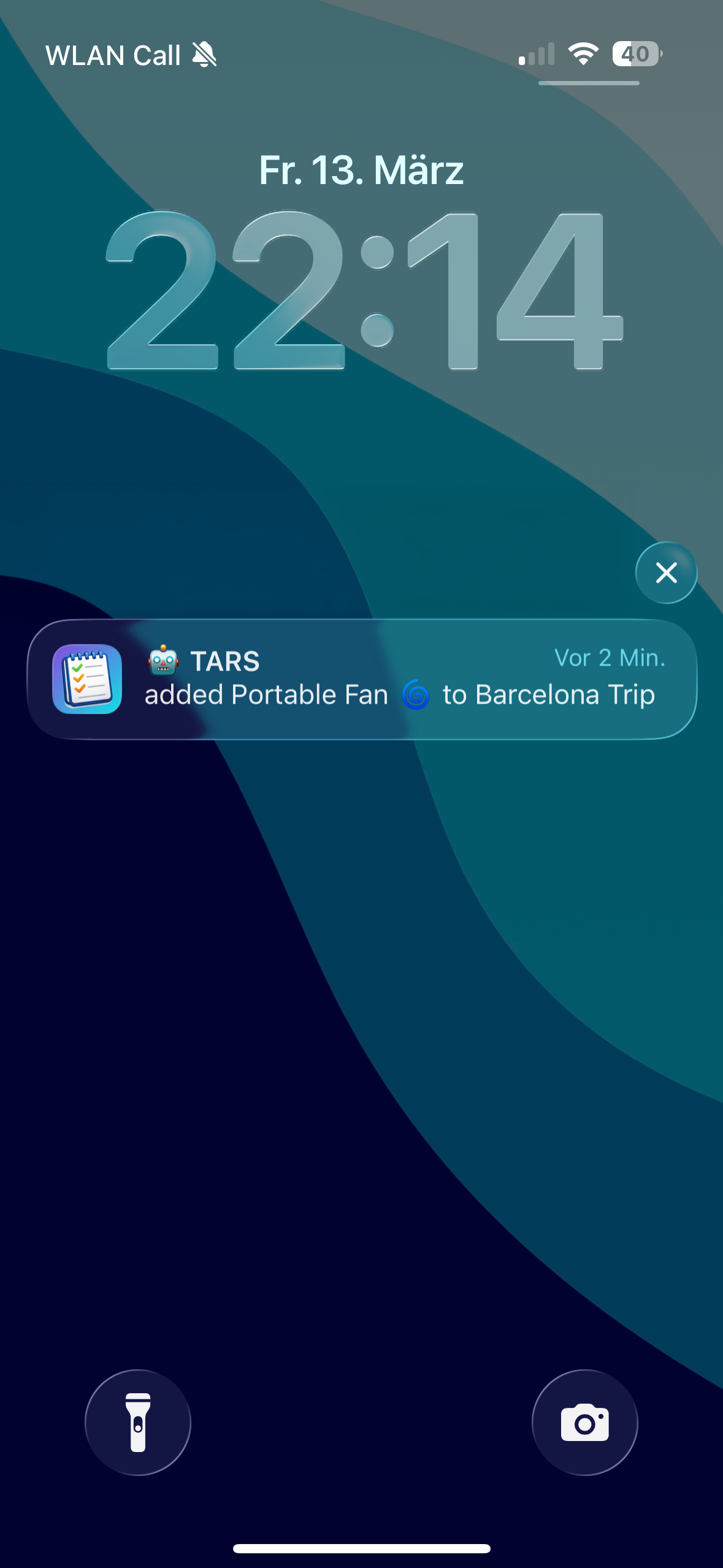
Your partner gets a push notification. The list is on both phones. Nobody had to open the app and type anything.
The same thing works through the API. If you're building a recipe parser or a meal planning tool:
curl -X POST https://lystbot.com/api/v1/lists/LIST_ID/items \
  -H "Authorization: Bearer YOUR_API_KEY" \
  -H "Content-Type: application/json" \
  -d '{
    "items": ["Canned tomatoes", "Bell pepper", "Onion", "Garlic", "Eggs", "Cumin", "Paprika", "Feta cheese"]
  }'
One request, all items land on the list. The API accepts arrays so you don't need to loop.
We wrote a full walkthrough of the grocery use case with Claude: Using Claude as your MCP-powered grocery assistant.
Download LystBot and try this yourself. The MCP server setup takes about two minutes.
Use case 2: your ai todo list, managed by Claude
Todo lists are trickier than groceries. Groceries are simple: items go on, items get checked off at the store. Todos have priorities, deadlines, and context. This is where an AI agent earns its keep.
Say you just finished a meeting. You tell Claude:
You: "That meeting had three action items. Add 'send revised proposal to Sarah by Friday,' 'research competitor pricing,' and 'schedule follow-up for next Thursday' to my work todo list."
Claude: "Done. I've added all three to your Work Todo list."
Or through the CLI, which works well inside coding agents and terminal workflows:
npx lystbot add "Work Todo" "Send revised proposal to Sarah by Friday"
npx lystbot add "Work Todo" "Research competitor pricing"
npx lystbot add "Work Todo" "Schedule follow-up for next Thursday"
The items sync to the app on your phone. You can check them off from anywhere. If you share the list with a colleague using a share code, they see the same items in real time.
What makes AI management better than typing todo items yourself? Context. You can say "I need to prep for the board meeting next week" and let the AI break that into specific tasks. It remembers what you discussed earlier in the conversation. It can batch-add items instead of making you think of each one separately.
Connect your AI agent in 5 steps
Setting up LystBot's MCP server with Claude Desktop takes about five minutes. Here's the whole process.
Step 1: Download LystBot
Get it on your phone from the App Store or Google Play. Create a list or two so you have something to work with.
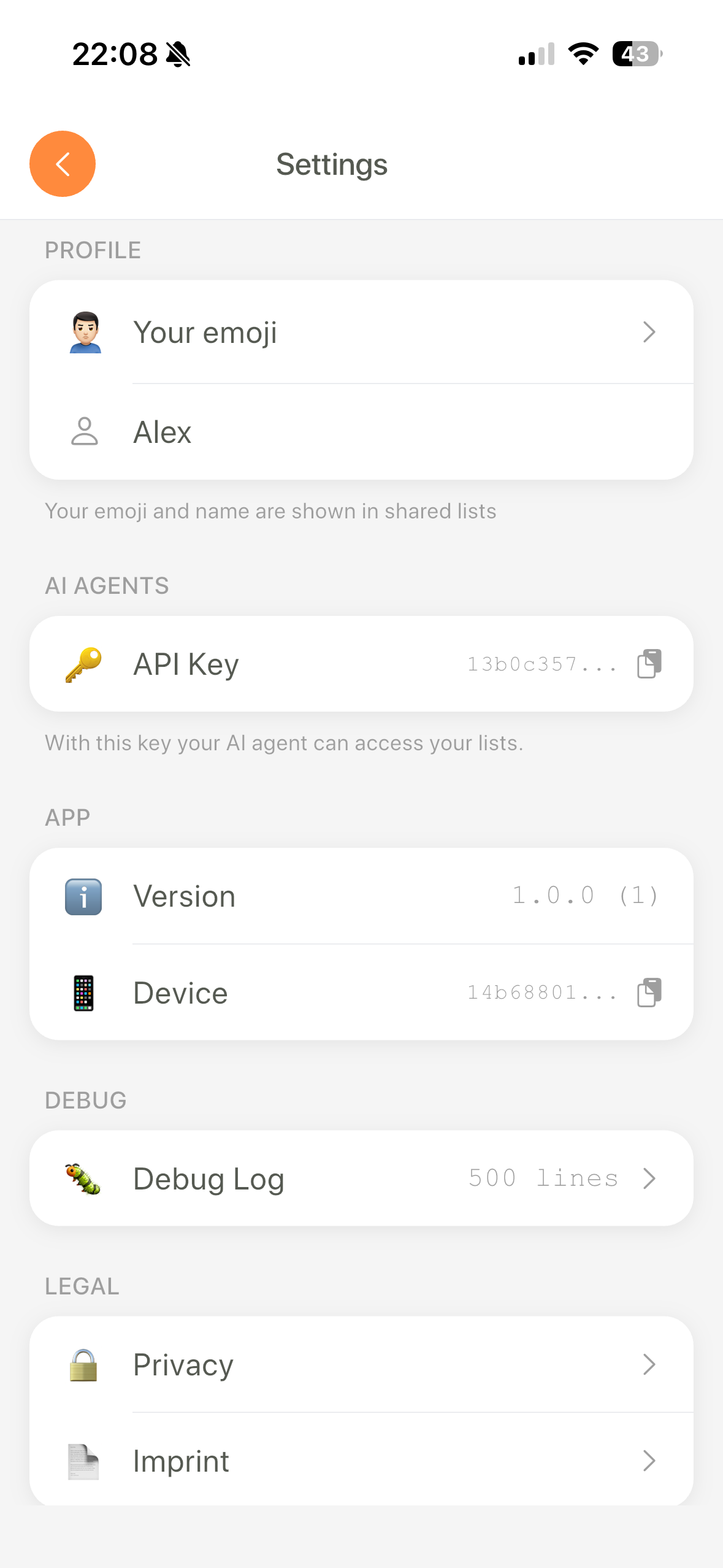
Step 2: Copy your API key
Open LystBot, go to Settings. Your API key is right there.
Step 3: Open your Claude Desktop config
Find claude_desktop_config.json:
- macOS:
~/Library/Application Support/Claude/claude_desktop_config.json - Windows:
%APPDATA%\Claude\claude_desktop_config.json
Step 4: Add the LystBot MCP server
{
  "mcpServers": {
    "lystbot": {
      "command": "npx",
      "args": ["-y", "lystbot-mcp"],
      "env": {
        "LYSTBOT_API_KEY": "your-api-key-here"
      }
    }
  }
}
Replace your-api-key-here with the key from step 2.
Step 5: Restart Claude Desktop and test
Close and reopen Claude Desktop. You should see a hammer icon in the chat input. Try:
"Show me all my lists"
If Claude returns your lists, you're set.
Common issues: If Claude says it can't find the tool, check the JSON for syntax errors (a missing comma breaks everything silently). If npx times out, your network might block npm registries. Try npm install -g lystbot-mcp and use the full path instead of npx. If you get a 401 from the API, your key has a trailing space. Copy it again.
The full setup documentation is at lystbot.com/docs.
The Sunday Review: a recurring workflow
I'll be honest: the first version of this automation ran on a Saturday at 3am and created 47 duplicate grocery lists before I noticed. I'd messed up the cron syntax and it fired every minute instead of once a week. My wife opened the app to "Groceries Mar 08" through "Groceries Mar 08 (47)" and asked if I was okay. So: test your cron jobs.
The version that actually works made me stop thinking about list management entirely.
Every Sunday morning at 8am, a cron job creates a fresh grocery list for the week, pre-filled with staples:
#!/bin/bash
API_KEY="YOUR_API_KEY"
BASE="https://lystbot.com/api/v1"

# Create this week's list
LIST_ID=$(curl -s -X POST "$BASE/lists" \
  -H "Authorization: Bearer $API_KEY" \
  -H "Content-Type: application/json" \
  -d "{
    \"title\": \"Groceries $(date +'%b %d')\",
    \"emoji\": \"🛒\",
    \"type\": \"shopping\"
  }" | jq -r '.id')

# Add weekly staples
curl -s -X POST "$BASE/lists/$LIST_ID/items" \
  -H "Authorization: Bearer $API_KEY" \
  -H "Content-Type: application/json" \
  -d '{
    "items": [
      "Milk",
      "Eggs",
      "Bread",
      "Bananas",
      "Chicken breast",
      "Rice",
      "Onions",
      "Olive oil"
    ]
  }'
Set up with crontab -e and add 0 8 * * 0 /path/to/sunday-groceries.sh. You wake up, your grocery list is already started.
Then during the week, whenever you're chatting with Claude about meals or recipes, you say "add this to my grocery list" and the items pile up alongside the staples. By Saturday you have a complete list without ever having opened the app to type anything.
I also run a similar script that creates a fresh "Week of [date]" todo list every Monday with recurring items: review budget, check analytics, back up photos. The repeating tasks that otherwise live in my head.
The combination of scheduled automation (cron + API) and ad-hoc additions (AI agent + MCP) covers both the predictable and the spontaneous. That's what makes this setup stick. For more automation ideas using the REST API, see our post on grocery list API automations.
Why this works better than built-in AI features
Some list apps are starting to add AI features. Auto-categorization, smart suggestions, that kind of thing. Those are fine for what they are. But they're limited to what the app developer imagined.
An open API and MCP server let your AI agent do whatever you need. Parse a recipe. Break down a project into tasks. Add items from a Slack conversation. Trigger a list update from a Home Assistant sensor. The app doesn't need to anticipate these workflows because the interface is programmable.
LystBot chose this approach on purpose. Instead of building one AI feature, we built three integration points (API, MCP, CLI) and let you wire them into whatever tools you already use. The MCP protocol spec is open, so any AI tool that supports it can connect. That's Claude today, but others are adopting it fast.
Get started
LystBot is free. The API is free. No paid tiers, no OAuth wrestling, no rate limit walls.
- Download LystBot (App Store / Google Play)
- Set up the MCP server using the docs
- Tell Claude to add something to a list. That's it.
Once you feel the workflow click, you won't go back to typing items manually. Your AI agent is already good at understanding what you need. Now it can actually do something about it.