
10 Real MCP Server Use Cases for Personal Productivity

MCP (Model Context Protocol) is the USB-C of AI apps. One standard protocol, any tool. Anthropic shipped it, every AI company adopted it, and now there are hundreds of MCP servers floating around GitHub. But what are the actual mcp server use cases that matter for everyday life?
Most "awesome MCP servers" lists read like a feature dump. Here's a server. Here's another server. Cool. This post is different. I spent the last few months wiring up MCP servers to my own workflows, broke things more than once, and landed on 10 setups that actually stuck. These are real mcp server productivity wins, not demos. Things that save time on a Tuesday afternoon.
What's in this post:
- Grocery and shopping lists
- File system management
- Calendar and scheduling
- Note-taking and knowledge base
- Email triage
- Code repository management
- Database queries
- Home automation
- Travel planning
- Personal finance tracking
- MCP server tutorial: getting started in 5 steps
1. Grocery and shopping lists
MCP server: LystBot MCP
You're chatting with Claude about a recipe. You realize you need ingredients. Instead of switching apps, copying items, opening your phone:
"Add oat milk, tahini, and chickpeas to my grocery list"
Done. Your partner sees the updated list on their phone immediately because LystBot syncs across devices.
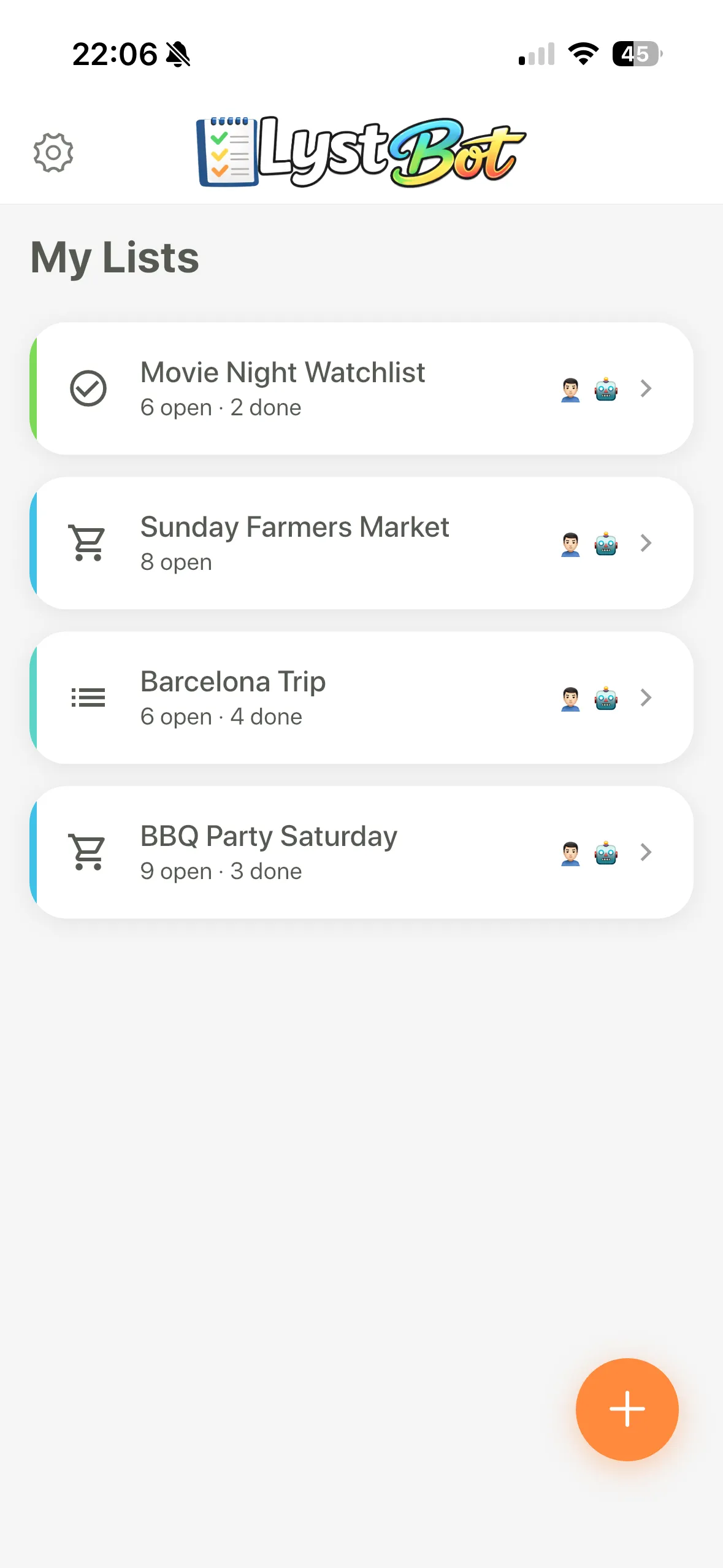
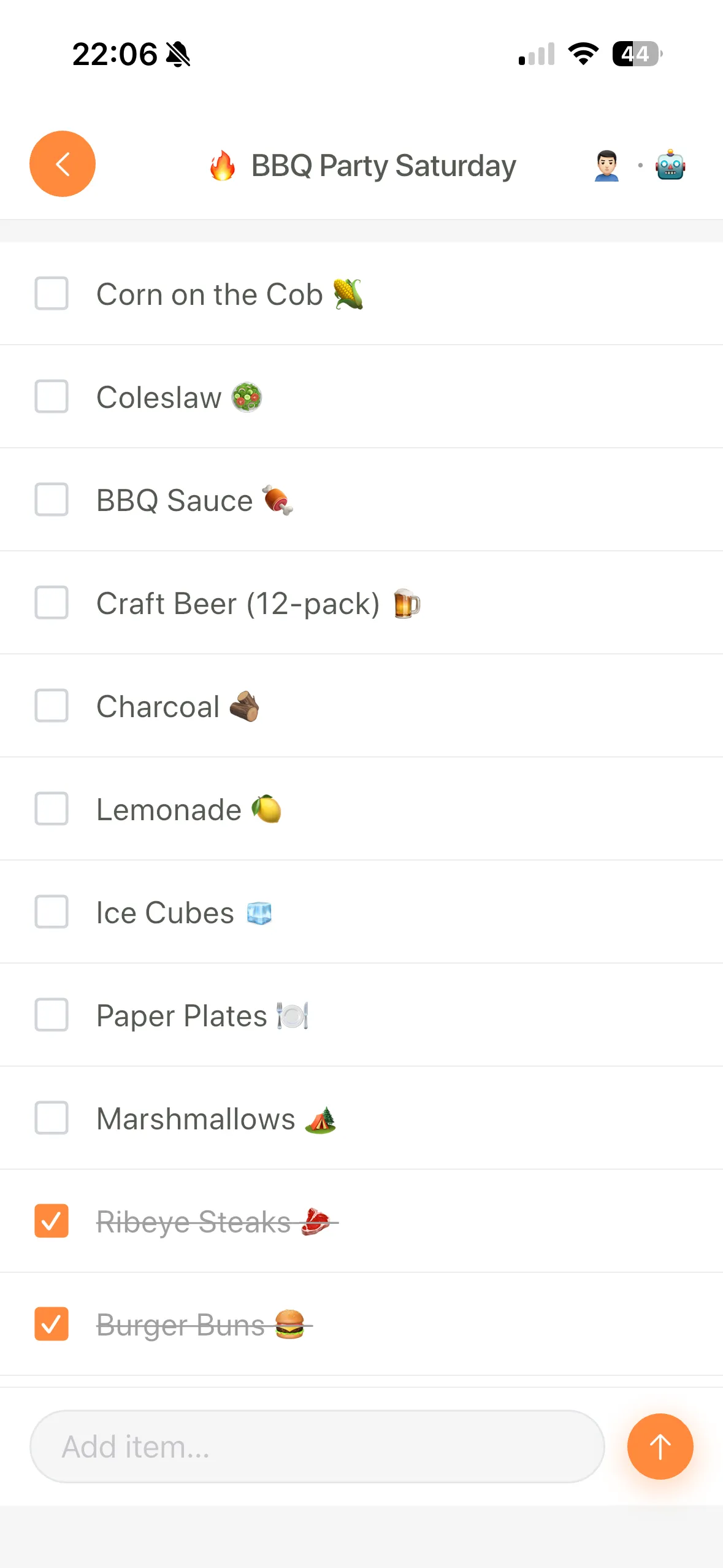
The reason this works so well: grocery lists are the kind of task you do while doing something else. You're meal planning, browsing recipes, or just remembering you're out of coffee. Having your AI assistant handle the list means you stay in flow.
We wrote a full walkthrough of this setup: Using Claude as your MCP-powered grocery assistant.
Full disclosure: LystBot is our product. But this is genuinely the use case that made me understand why MCP matters for normal people, not just developers. It's an mcp server for personal use that doesn't require you to think about APIs. If you're curious about the technical side, we wrote about building a list app with an API-first approach.
2. File system management
MCP server: filesystem
Your Downloads folder is a disaster. You know it. I know it.
"Find all PDFs in my Downloads folder that are older than 30 days and move them to an Archive folder"
The filesystem MCP server lets Claude read, write, move, and search files on your machine. You can do bulk renames, organize folders by date, or find that one file you downloaded three weeks ago and forgot about.
The alternative is writing a bash one-liner every time. Which, sure, works. But describing what you want in plain English is faster when the task is ad-hoc and you don't want to debug find flags.
3. Calendar and scheduling
MCP server: Google Calendar MCP
"What's on my calendar next week? Block 2 hours for deep work on Thursday afternoon, somewhere between existing meetings"
This goes beyond "read my calendar." The useful part is the reasoning. Claude can look at your schedule, find gaps, and create events that actually fit. Rescheduling a meeting? Tell Claude what constraints matter (must be before Friday, at least 1 hour, not during lunch) and let it figure out the slot.
The catch: Google Calendar MCP servers vary in quality. Some only support read access. Check that yours handles event creation before getting excited.
4. Note-taking and knowledge base
MCP server: Obsidian MCP or Notion MCP
"Summarize my meeting notes from today and create action items as a new note linked to the meeting"
If you keep notes in Obsidian or Notion, an MCP server turns Claude into something like a research assistant that actually knows your notes. Ask it to find connections between topics, generate weekly summaries, or pull together everything you've written about a specific project.
Obsidian's local-first approach works well here since the MCP server reads directly from your vault without sending data to third-party services. Notion's official MCP server works too, but your notes go through their API.
5. Email triage
MCP server: Gmail MCP
"Show me unread emails from this week. Flag anything from clients. Draft a reply to the meeting invite from Sarah."
Nobody likes email triage. I used to open Gmail, stare at 40 unread messages, and close the tab. Letting Claude scan, categorize, and draft replies cuts that 20-minute morning ritual down to 5 minutes of reviewing what it found.
One word of caution: be careful with auto-sending. Having Claude draft replies is great. Having it send replies without review is how you accidentally tell your boss you'd love to work weekends.
6. Code repository management
MCP server: GitHub MCP
"What PRs in our repo need my review? Give me a one-paragraph summary of each"
GitHub's official MCP server lets Claude browse repos, read PRs, check CI status, and create issues. What makes this actually useful: summarization. A 40-file PR diff takes forever to read. Getting a one-paragraph summary of what changed, with the full diff still available when you need it, saves real time during review cycles.
Also useful for issue triage: "Show me all bugs labeled 'high priority' that have been open for more than a week."
7. Database queries
MCP server: SQLite MCP or Postgres MCP
"How many users signed up last month? Compare it to the month before and show the trend"
This one is mostly for developers and data people. Instead of writing SQL, describe what you want. Claude writes the query, runs it, and interprets the results.
It's not going to replace your BI tool for complex dashboards. But for quick ad-hoc questions about your data, talking to Claude beats opening pgAdmin and remembering which table has the signup timestamps.
8. Home automation
MCP server: Home Assistant MCP
"Turn off all lights downstairs and set the thermostat to 20°C"
If you already run Home Assistant, the MCP server gives Claude access to your devices. The interesting part is compound commands. "Set the house to movie mode" can mean: dim lights, close blinds, turn on the TV, set volume to 30%. You define what that means once in conversation, and Claude remembers.
Fair warning: the setup requires a running Home Assistant instance. This isn't a plug-and-play use case. But if you're already in that world, adding Claude as a controller is straightforward.
9. Travel planning
MCP server: Maps/Places API + LystBot MCP
"Find the top-rated coffee shops within walking distance of my hotel in Lisbon and add them to my travel list"
This combines two MCP servers. One searches for places, the other saves them to a list you can check on your phone while walking around a new city. The list syncs, so you can plan on your laptop and browse on mobile.
Travel planning is scattered by default. You've got tabs open for flights, hotels, restaurants, activities. Having Claude pull it together into one shareable list cuts through the chaos.
10. Personal finance tracking
MCP server: Google Sheets MCP or spreadsheet MCP
"Look at my expenses spreadsheet. How much did I spend on groceries this month? How does it compare to last month?"
If you track spending in a spreadsheet (and a surprising number of people do), an MCP server turns Claude into an analyst. Ask for spending breakdowns, trends, or anomalies. "Did any subscription charge more than usual this month?" is the kind of question that takes 10 minutes in Excel and 10 seconds with Claude.
The limitation: this only works if your data is already structured. Claude can't read your bank feed directly. You need the spreadsheet.
MCP server tutorial: getting started in 5 steps
Setting up your first MCP server takes about five minutes. Here's what to do.
Step 1: Install Claude Desktop
Download Claude Desktop if you haven't already. It's the most common MCP client. Other claude desktop tools like Cursor or Windsurf also support MCP, but Claude Desktop is the simplest starting point.
Step 2: Pick one MCP server
Don't install five at once. Pick whichever use case from this list made you think "yeah, I'd actually use that." The awesome-mcp-servers repo has a full directory.
Step 3: Edit your config file
Open claude_desktop_config.json. On macOS it's at ~/Library/Application Support/Claude/claude_desktop_config.json. On Windows: %APPDATA%\Claude\claude_desktop_config.json.
Here's an example config with LystBot's MCP server:
{
  "mcpServers": {
    "lystbot": {
      "command": "npx",
      "args": ["-y", "lystbot-mcp"],
      "env": {
        "LYSTBOT_API_KEY": "your-api-key-here"
      }
    }
  }
}
Each server gets its own entry. You can stack multiple servers in the same file.
Step 4: Restart Claude Desktop
Close and reopen Claude Desktop. You should see a hammer icon in the chat input. Click it to confirm your MCP server loaded. If it doesn't show up, check the config file for JSON syntax errors (missing commas are the usual suspect).
Step 5: Test it
Try a simple prompt to verify things work:
"Show me all my lists"
If you get a response with your data, you're set. If Claude says it doesn't have access to that tool, the server didn't load. Double-check the config path and restart again.
Common issues
Server not showing up? Almost always a JSON syntax error in the config. A missing comma or trailing comma will silently break things. Validate your file at jsonlint.com before anything else.
"Permission denied" errors? The MCP server needs access to whatever resource it manages. For the filesystem server, that means the right directory paths in the config. For API-based servers like LystBot, it's the API key.
Slow first response? Some servers use npx, which downloads the package on first run. The second call will be faster.
Security and permissions checklist
Before you connect an MCP server to Claude, think about what access you're granting. A quick checklist:
- Does the server need write access, or just read? Start read-only if the server supports it.
- For filesystem servers, only expose the folders Claude actually needs. Don't point it at your home directory.
- If a server uses an API key (like LystBot or GitHub), generate a dedicated key for MCP. Don't reuse your main credentials.
- Local servers (filesystem, SQLite, Obsidian) keep data on your device. API-based servers send requests to external services. Know which is which.
- Stick to official or well-maintained servers. A random MCP server from GitHub has the same trust profile as any npm package you install.
Try it this week
You've read ten mcp server use cases. At least one of them probably fits how you already work. The best mcp servers in 2026 aren't the ones with the most GitHub stars. They're the ones that remove a small friction from your day, every day.
Here's what I'd suggest:
- Download LystBot on your phone (App Store / Google Play)
- Set up the MCP server using the setup docs (takes about 2 minutes)
- Ask Claude to add something to a list. That's it. Once you feel the workflow click, you'll want to add more servers.
MCP support has roughly doubled every quarter since Anthropic opened the protocol. A year ago, there were maybe 50 servers worth using. Now there are several hundred. The direction is clear, even if individual servers still vary in polish.
- LystBot on GitHub
- awesome-mcp-servers - directory of MCP servers